Split Image Online – Free Image Splitter
Split a JPG or PNG into equal parts: choose up to 10 columns and 10 rows and download every piece. Free, and your image never leaves your browser.
Split an Image Online in Seconds
Upload a JPG or PNG, set the number of columns and rows, and click Export. The image is cut into equal pieces, and each piece downloads as its own PNG file, named by row and column (split-r1-c1.png, split-r1-c2.png and so on).
Everything runs in your browser, so your image is never uploaded. There is no signup and no watermark.
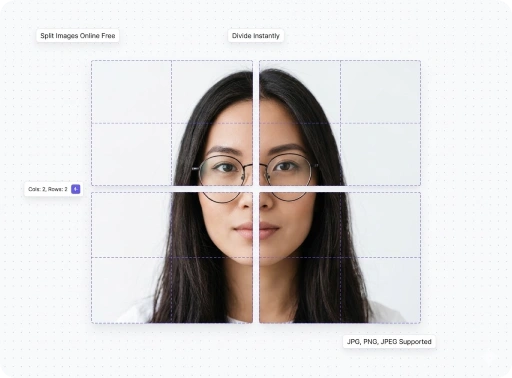
Free Image Splitter for Photos, JPG and PNG
Use it as an image splitter, photo splitter or grid maker. Split a photo in half, cut a long screenshot into pages, or divide a picture into a 3 × 3 grid for Instagram.
How to split an image into parts
- Upload a JPG or PNG. Click the box or drag a file onto it.
- Set Columns and Rows. Use the + and – buttons or type a number from 1 to 10. Dashed lines on the preview show where the image will be cut.
- Click Export. Every piece downloads as a separate PNG. If your browser asks whether to allow multiple downloads, choose Allow.
Split an image into equal parts
Every piece is the same size: the width is divided by the number of columns and the height by the number of rows. For example, a 3000 × 2000 photo split into 3 columns and 2 rows gives six pieces of 1000 × 1000 pixels.
If the size does not divide evenly, the last pixel or two on the right or bottom edge is left out, so that every piece stays exactly the same size.
| To get | Columns × Rows | Good for |
|---|---|---|
| Two halves, left and right | 2 × 1 | Two-page scans, before-and-after photos |
| Two halves, top and bottom | 1 × 2 | Two documents scanned on one page |
| Four equal parts | 2 × 2 | A collage of four photos |
| Wide photo in three parts | 3 × 1 | An Instagram panorama you swipe through |
| Nine-tile grid | 3 × 3 | An Instagram profile grid |
| Page-sized strips | 1 × 2 to 1 × 10 | A long screenshot, receipt or poster |
Common ways to split an image
Split an image in half
Set Columns to 2 and Rows to 1 to cut it into a left and right half, or Columns to 1 and Rows to 2 for a top and bottom half.
Split a JPG into multiple pages
Set Columns to 1 and Rows to the number of pages you need. A long screenshot, receipt or poster becomes several page-sized images that you can print or share one by one. To put them into one PDF, use PNG to PDF.
Separate photos from one image
If several photos sit in an even grid, such as a 2 × 2 collage or a scan of four prints, set the same grid and each photo comes out as its own file. If they are not evenly spaced, cut each one out with Crop Image.
File types and quality
- Upload JPG, JPEG or PNG. WebP and iPhone HEIC photos need converting first with WebP to JPG or HEIC to JPG.
- Full quality: pieces keep the original resolution and are saved as lossless PNG, so nothing is resized or compressed.
- Need JPG pieces? A JPG input gives PNG pieces, which can be larger files. Convert them with PNG to JPG.
- Private: the image is split on your device and never sent to a server.
Frequently Asked Questions
Common questions about splitting JPG and PNG images with Pagedone.
Upload a JPG or PNG, set the number of columns and rows, and click Export. Each piece downloads as a separate PNG file. It is free, there is no signup, and the image is not uploaded to a server.
Choose how many columns and rows you want. The image is divided evenly, so every piece has the same width and height. A 3000 × 2000 photo in 3 columns and 2 rows gives six pieces of 1000 × 1000 pixels.
Set Columns to 2 and Rows to 1 for a left and right half, or Columns to 1 and Rows to 2 for a top and bottom half, then click Export.
Up to 10 columns and 10 rows, which is 100 pieces. The dashed lines on the preview show the grid before you export.
Yes, if they are laid out in an even grid, such as four photos in a 2 × 2 collage. Set the same grid and each photo is saved as its own file. For photos that are not evenly spaced, use Crop Image on each one.
No. Each piece keeps the original resolution and is saved as a lossless PNG, so nothing is resized or compressed.
PNG keeps every pixel exactly as it was. PNG files can be larger than JPG, so if you need JPG pieces, convert them with PNG to JPG.
It is free, with no signup and no watermark. Your image is split in your browser on your own device and is never sent to Pagedone or any other server.
Use the Combine Images tool to join two images side by side or one above the other.