Circle Crop – Make an Image Round
Crop an image into a circle online for free. Move and resize the round crop, set the output size, and download a PNG with transparent corners.
Round Crop Images Online for Free
Upload a JPG or PNG and a circle appears over your picture. Drag it onto the face or object you want, make it bigger or smaller, and download a round image. Everything happens in your browser.
The area outside the circle is transparent, so the round image sits cleanly on any background. No sign-up and no watermark.
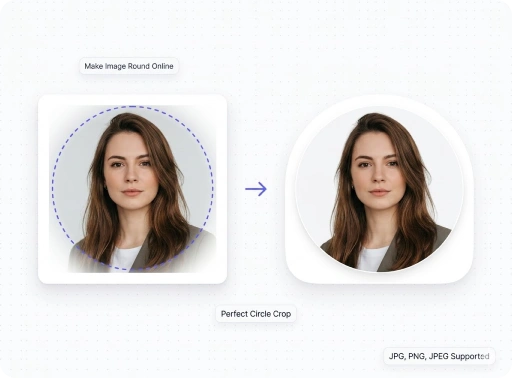
How to crop an image into a circle
- Upload your image. Click Upload Image or drag a JPG or PNG onto the page.
- Place the circle. Drag the circle on the preview to the part of the picture you want to keep.
- Set the size of the circle with the Scale slider. 100% is the largest circle that fits the image; lower values zoom in.
- Choose the output size. Enter the width and height in pixels (10 to 5000). Keep the lock on so width and height stay equal and you get a perfect circle.
- Click Download. You get a PNG file named round-image.png.
What round images are used for
- Profile pictures and avatars for WhatsApp, LinkedIn, Instagram, Discord, Slack or Teams. Cropping it yourself lets you decide exactly what shows inside the circle.
- Team and about pages, where every photo should have the same round shape and size.
- Email signatures, slides and documents, where a round photo with a transparent background looks cleaner than a square one.
- Logos, stickers and icons that need a round shape.
Download format and transparent corners
- PNG with transparency: the download is always a PNG, and everything outside the circle is transparent, not white.
- JPG has no transparency. If you convert the round image with PNG to JPG, the corners are filled with a solid color.
- Quality: the crop is drawn at the output size you choose. If that size is larger than the cropped area of your photo, the image is enlarged and can look soft, so keep it at or below the size of the original crop.
- Oval instead of a circle: unlock the width and height and enter different values.
- Private: the image is cropped on your device and never sent to a server.
Frequently Asked Questions
Common questions about cropping an image into a circle.
Upload a JPG or PNG, drag the circle onto the part you want, set its size with the Scale slider, choose the output size and click Download. You get a round PNG image in a few seconds.
Yes. The download is a PNG and the corners outside the circle are transparent, so the round image works on any background color.
Yes. Drag the circle on the preview to move it, and use the Scale slider to make it bigger or smaller.
Upload your photo, place the circle over your face, adjust the Scale, set the size (for example 400 × 400 px) and download. Then upload the round PNG to your profile.
Yes. Unlock the width and height and enter two different values, for example 600 × 400 px.
No compression is added because the result is a PNG. Quality only drops if you set the output size larger than the cropped part of the original photo.
The download is a PNG, because JPG cannot store transparent corners. You can convert it with PNG to JPG, but the corners will then be filled with a solid color.
No. The image is cropped in your browser and never leaves your device.