Merge JPG & Combine Images
Merge 2 to 20 JPG, PNG or WebP images into one JPG, PNG or PDF: side by side, on one page or in a grid. Free, no watermark, and your photos never leave your browser.
Merge JPG Files into One Online
A JPG merger joins several pictures into one image file. Upload 2 to 20 JPG images, put them in order, choose Side by Side, Vertically or Grid, and click Download. You get one JPG, PNG or PDF file with all your pictures.
Everything runs in your browser, so your photos are never uploaded. There is no signup and no watermark.
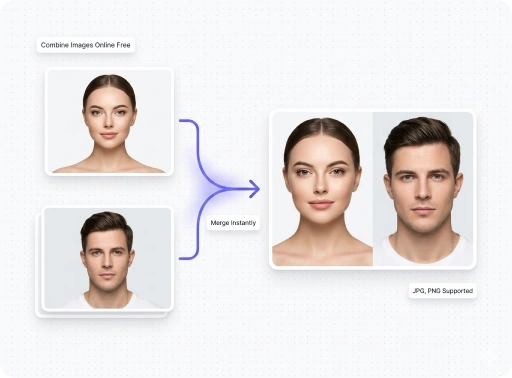
Free JPG Merger & Image Combiner
Pagedone works as a JPG merger, JPEG joiner and photo merger in one free tool. Join two or more JPG images, combine JPGs with PNG or WebP, put several pictures on one page, or make a simple photo grid.
How to merge JPG files into one
- Upload your images. Select or drag in 2 to 20 JPG, PNG or WebP files. Use "+ Add images" to add more later.
- Put them in order. Drag an image in the list, or use the ↑ and ↓ buttons. Remove one with ×.
- Choose a layout. Side by Side puts them in one row, Vertically stacks them like one page, and Grid arranges them in columns.
- Adjust spacing and background if you want a gap or a border around the images.
- Choose the file type and click Download. JPG is selected by default, and the file size is shown under the preview.
Side by side, on one page or in a grid
Side by Side
All images are placed in one row at the same height. Use it for before-and-after photos, two portraits in one picture, or a product shown from several angles.
Vertically (one page)
The images are stacked one above the other at the same width. Use it when a form accepts only one file, for example the front and back of an ID card, both sides of a certificate, or several pages of a receipt.
Grid
The images are arranged in rows and columns. Pick 1 to 10 columns; for four photos, 2 columns gives a 2 × 2 collage. Images that are shorter than others in their row are centered.
Images of different sizes
Larger images are scaled down to match the smallest one, so nothing is enlarged or blurred and nothing is cropped or stretched. For example, a 4000 × 3000 photo next to a 1200 × 900 photo is scaled to 1200 × 900, giving a 2400 × 900 result.
Spacing and background
Spacing adds the same gap between the images and around the edge, from 0 to 200 pixels. The gap is filled with the background color, which also works as a simple border.
Example results
These are the output sizes you get with spacing set to 0.
| You merge | Layout | Result |
|---|---|---|
| 2 photos, 1920 × 1080 each | Side by Side | 3840 × 1080 |
| Front and back of an ID card, 1000 × 630 each | Vertically | 1000 × 1260 |
| 4 square photos, 1200 × 1200 each | Grid, 2 columns | 2400 × 2400 |
| 3 phone screenshots, 1170 × 2532 each | Side by Side | 3510 × 2532 |
Merge JPG files into one PDF
Choose PDF – One page under Download as. You get a single-page PDF that contains the merged image, which is handy for forms that ask for a PDF. If you need each JPG on its own page, use JPG to PDF instead.
Keep the merged JPG small enough to upload
Many application and exam forms limit uploads to a few hundred KB. Check the size shown under the preview. If it is too big, choose JPG – Smaller file. It saves at 70% quality instead of 92%, which usually cuts the file size sharply with little visible difference on screen. If it is still too large, shrink it with the Image Resizer.
| Download as | Best for |
|---|---|
| JPG – High quality | Sharing, printing and most uploads |
| JPG – Smaller file | Forms with a file-size limit, email, WhatsApp |
| PNG – Lossless | Screenshots and graphics where every pixel matters |
| PDF – One page | Forms and portals that only accept PDF |
JPG, JPEG, PNG and WebP
- JPG and JPEG are the same format, so .jpg and .jpeg files merge together without any conversion.
- You can mix formats: merge JPGs with PNG or WebP images.
- iPhone HEIC photos need converting first with HEIC to JPG.
- Private: your images are merged on your device and never sent to a server, so it is safe for ID cards and personal photos.
Frequently Asked Questions
Common questions about merging JPG and PNG images with Pagedone.
Upload 2 to 20 JPG images, put them in order, choose Side by Side, Vertically or Grid, and click Download. You get one JPG file. It is free, takes a few seconds, and nothing is uploaded to a server.
Up to 20 images in one go. If you need more, merge the first 20, download the result, and add it back as the first image with the rest.
Choose Vertically. The images are stacked one above the other at the same width, like a single page. This is the usual way to send the front and back of an ID card or two pages of a document as one file.
Choose Grid and set the number of columns. For example, 4 photos in 2 columns make a 2 × 2 grid. Add spacing if you want a gap between the photos.
Yes. Drag an image up or down in the list, or use the ↑ and ↓ buttons. The preview updates straight away.
Yes. Larger images are scaled down to match the smallest one, so nothing is cropped, stretched or enlarged.
Choose PDF – One page under Download as to get a single-page PDF with the merged image. To put each JPG on its own page instead, use the JPG to PDF tool.
Yes. You can mix JPG, JPEG, PNG and WebP images in any order, and download the result as JPG, PNG or PDF.
No image is enlarged: larger photos are scaled down to match the smallest one, so nothing becomes blurry. JPG – High quality saves at 92% quality, where compression is hard to see. For no compression at all, choose PNG – Lossless.
Choose JPG – Smaller file (70% quality) and check the size shown under the preview. If it is still too large for your form, reduce its dimensions with the Image Resizer.
No. Your images are merged in your browser on your own device and are never sent to Pagedone or any other server.
It is completely free, with no signup, no watermark and no limit on how many times you use it.
Yes. It works in Chrome, Safari and other mobile browsers on Android and iPhone. Tap the upload box to pick photos from your gallery, then download the merged image to your phone. Phones have less memory, so merge very large photos in smaller batches.
Use the Split Images tool to cut an image back into separate pieces.