

A developer needs a reproducible bug capture, a designer wants pixel-accurate markup, and a product manager needs a clean share link before the next meeting. They are all taking screenshots, but they are not solving the same problem. For teams that want a polished all-in-one option, ScreenSnap Pro stands out early for its blend of capture, annotation, recording, OCR, and sharing across macOS and Windows. The best screenshot app still depends on capture modes, annotation depth, platform coverage, storage preferences, privacy expectations, and collaboration habits.
This comparison evaluates desktop applications and browser extensions across everyday desktop capture, browser review, documentation, design feedback, development, support, and async collaboration. Mobile support varies, so check each product's documented platform coverage instead of assuming a desktop tool has a comparable mobile app.
The practical criteria are capture flexibility, scrolling support, editing and redaction, recording, OCR and documentation, shortcuts and automation, sharing and integrations, performance, privacy, licensing, and setup effort. You will find nine distinct workflow recommendations, guidance for choosing between local-first and cloud tools, implementation tips, alternatives, and final recommendations for standardizing capture across a team.
1. ScreenSnap Pro
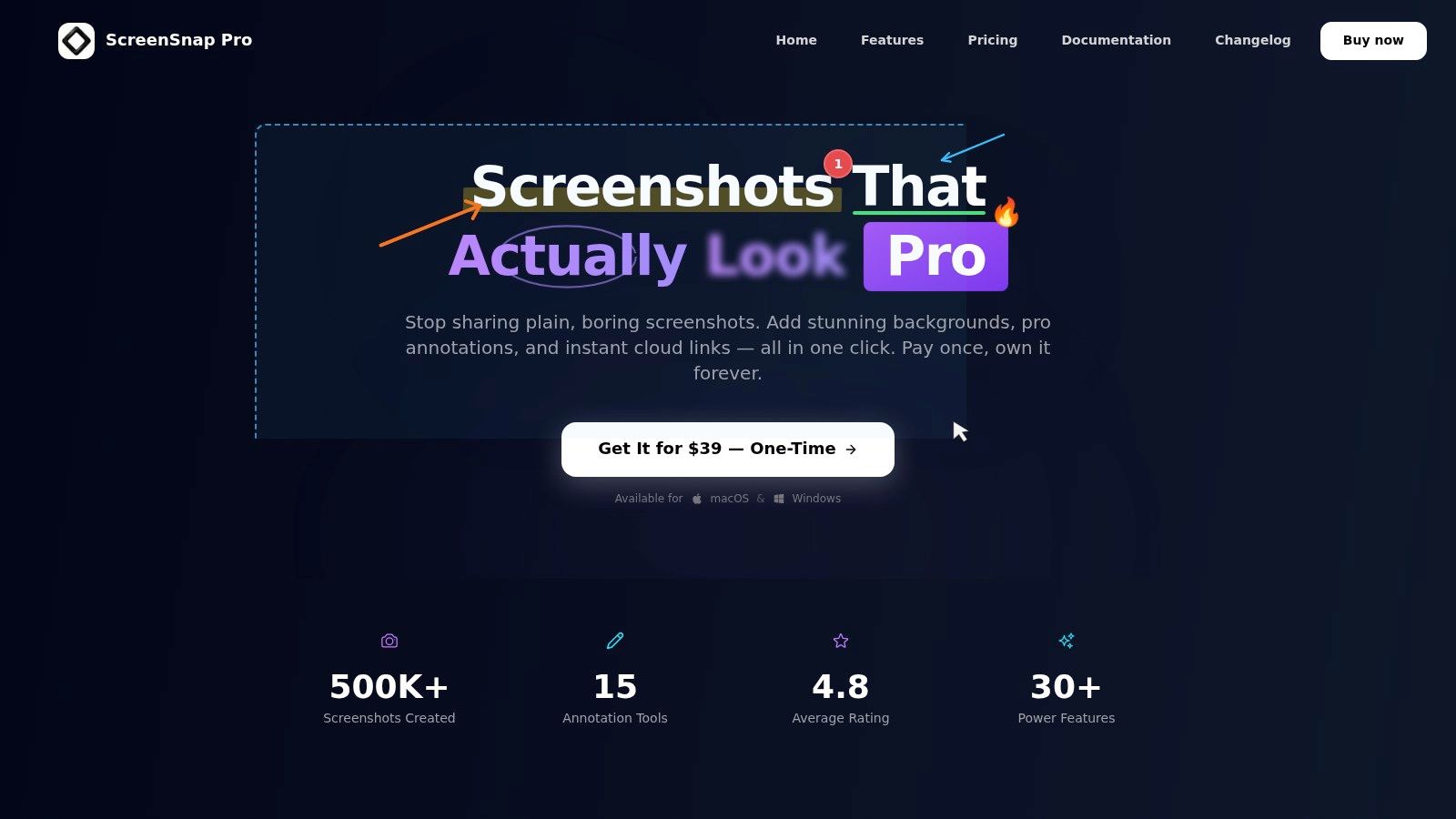
ScreenSnap Pro is the best screenshot app for users on macOS and Windows who want screenshots, recordings, editing, OCR, and sharing in one focused workspace. It handles area, window, and full-screen captures, assigns configurable keyboard shortcuts, and adds screen recording with webcam, system audio, and microphone support. You can export recordings as video or GIF, then use timeline-based zoom-ins to emphasize an interaction without opening a separate editor.
A complete capture-to-share workflow
The editor is deeper than a basic markup utility. Its 15 annotation tools include arrows, shapes, lines, blur, pixelation, counters, highlighter, text, emojis, spotlight, callouts, and pencil tools. That gives a developer enough control to mark a failing state precisely, while a designer can distinguish spacing, alignment, and component issues without writing a long explanation.
ScreenSnap Pro also adds 500+ gradient backgrounds, padding, rounded corners, and drop shadows for consistent presentation. The Quick Access Overlay keeps the latest capture available for editing, dragging, or sharing, and the pin feature lets you keep a reference image visible while completing a multi-step task.
Practical rule: Keep sensitive captures local, and use cloud links only when the recipient and access model are appropriate.
OCR extracts text from screenshots, images, PDFs, and locked content, which is useful when a bug report contains an error message or a researcher needs to reuse text from a visual record. Website capture includes desktop and mobile device presets, full-page output, and automatic blocking of popups and cookie banners.
The optional cloud creates short, signed links and supports direct embedding into documentation and messaging tools. Without cloud features, the app works offline and keeps captures local by default. It supports macOS on Apple Silicon and Intel, plus Windows 10 and 11. The one-time $39 license, with two keys and lifetime updates, makes ownership easier to forecast than a subscription, according to the product information supplied for this comparison.
Choose ScreenSnap Pro when you want polished static captures and lightweight recordings without stitching together separate tools. Its deliberate omissions, including no scrolling capture and no advanced non-linear video editing, keep the workflow focused. If your work depends on long-page capture or full documentation automation, Snagit or Screenpresso is a better fit.
2. TechSmith Snagit
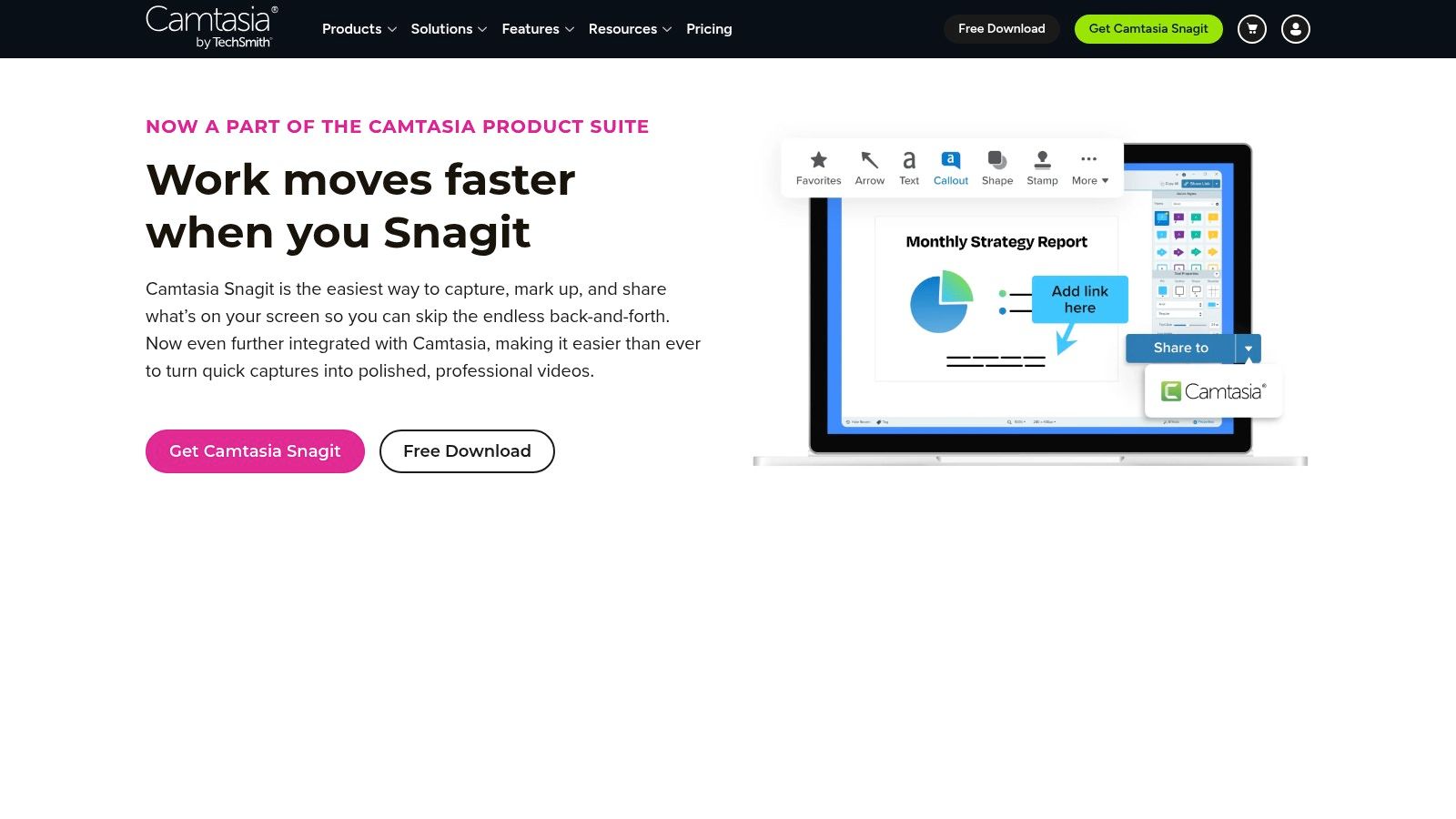
Snagit is the strongest choice for structured documentation, onboarding, and knowledge-base publishing. It runs on Windows and macOS, captures scrolling content, and combines image editing, templates, redaction, effects, recording, and sharing in a workflow built for repeatable instructions rather than isolated screenshots.
A typical process starts with a hotkey capture. You select a region, window, or long page, remove sensitive information with redaction, add numbered callouts or instructional text, and place the result into a template. AI Step Capture can turn clicks into a step-by-step guide, reducing the manual work involved in documenting a process that another employee must repeat.
Where Snagit earns its place
TechSmith Screencast provides an integrated sharing path for images and recordings. That is useful when reviewers need a central handoff rather than a file attached to email. Teams should still decide where sensitive screenshots may be uploaded, how links are controlled, how long assets remain available, and whether cloud sharing fits internal policy.
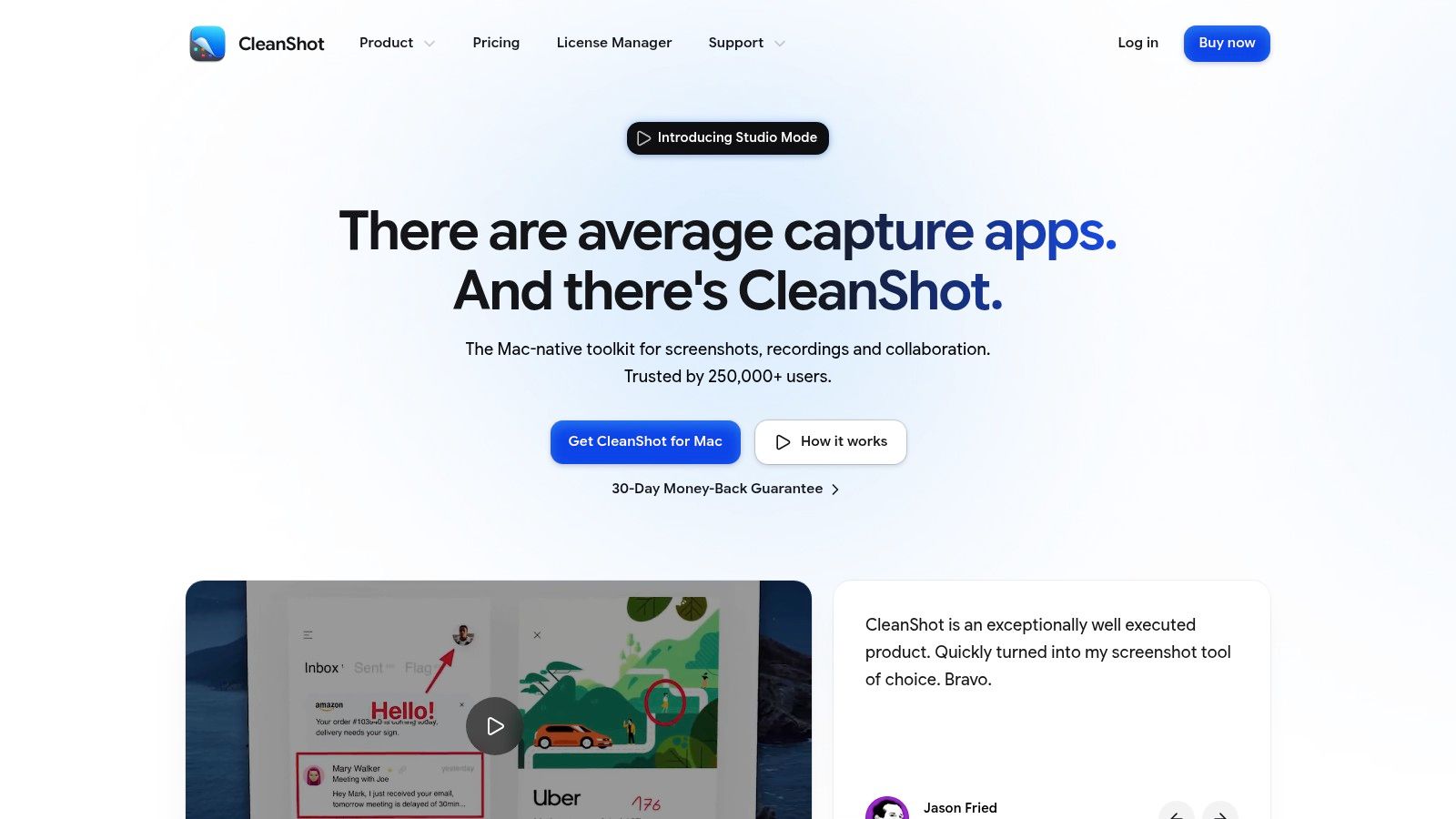
The trade-off is ownership. Snagit was noted as subscription-only as of 2025 in the supplied product brief, so its enterprise support, training resources, and documentation depth come with a recurring cost model. It is also heavier than a lightweight utility, which matters if your team only captures occasional interface bugs.
Developers: Choose Snagit when bug evidence must become a durable troubleshooting article.
Designers: Choose it when annotated visuals feed formal review or onboarding material.
Product managers: Choose it when a recording or guide needs review before publication.
Snagit is better than ScreenSnap Pro for scrolling capture and procedural documentation. It is less attractive for users who want a compact tool, local-first operation, or a one-time license.
3. ShareX
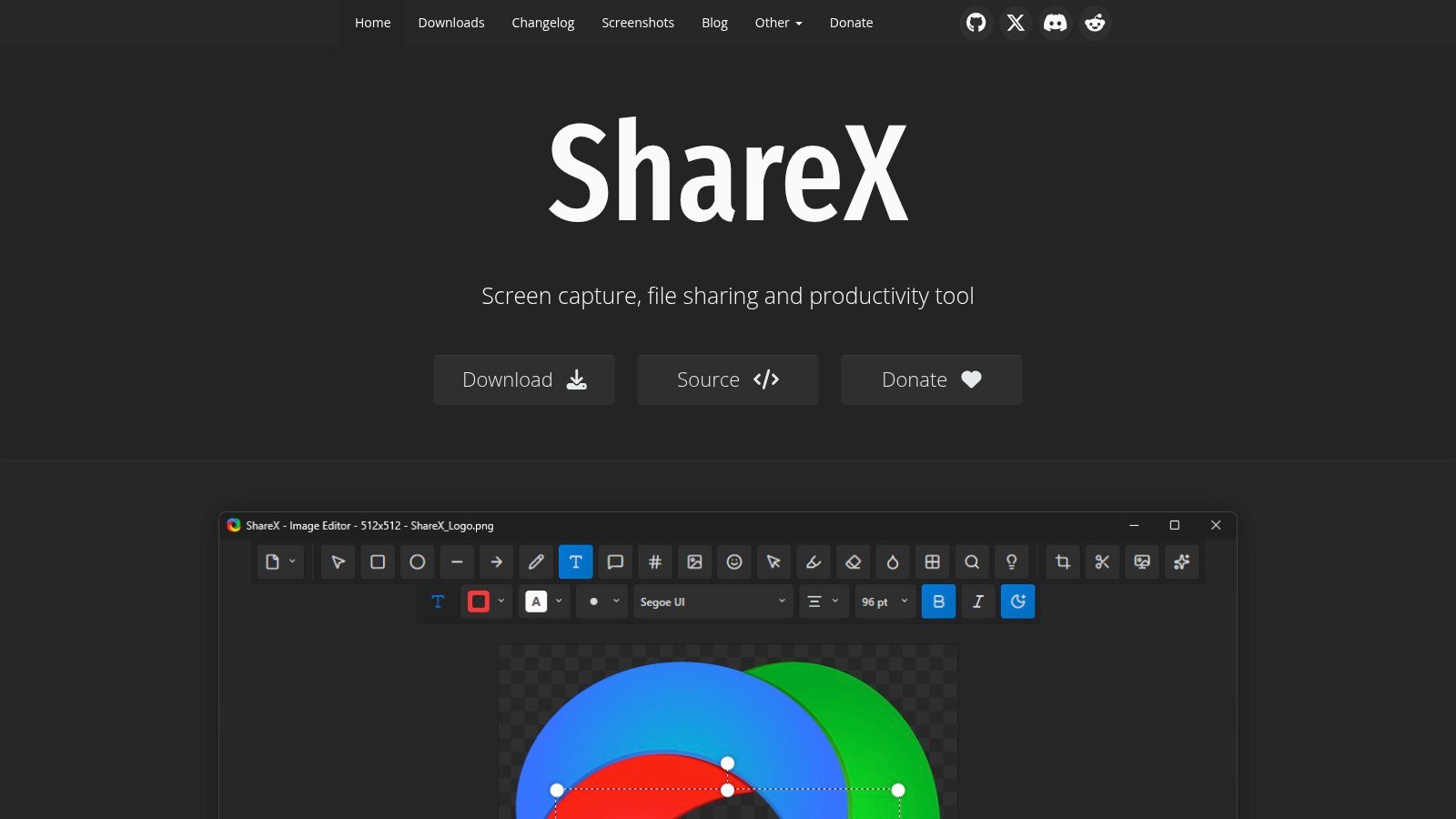
ShareX is the best screenshot app for technically confident Windows users who want control over automation, file handling, uploads, and scripted actions. It is free and open source, but its strength is not simplicity. ShareX rewards users who are willing to design a capture pipeline.
ShareX is the best screenshot app for technically confident Windows users who want control over automation, file handling, uploads, and scripted actions. It's free and open source, but its strength isn't simplicity. ShareX rewards users who are willing to design a capture pipeline.
A useful bug-reporting setup starts small. Assign one hotkey to region capture, another to scrolling capture, and configure the after-capture sequence to open annotation, apply redaction, save a predictable filename, and upload to an approved destination. Once that works, add after-upload rules, custom endpoints, watermarks, or image effects.
ShareX also records GIF and MP4 output. Those formats help explain hover states, animation bugs, and intermittent UI behavior, but not every workflow needs them. Adding every automation rule at once creates a system that's difficult to maintain and easy to misuse.
Build the workflow in layers
Start with capture: Configure region, window, and scrolling capture before touching advanced rules.
Add review: Make annotation and redaction deliberate steps before upload.
Choose destinations: Select file storage, a service, or a custom endpoint based on your team's privacy requirements.
Document ownership: Record what each hotkey and after-upload action does so another person can maintain the setup.
ShareX is Windows only, and its dense interface can overwhelm newcomers. External upload destinations also change the privacy posture of every capture, so don't treat a convenient default as an approved repository. Choose ShareX when automation matters more than visual polish. Choose Greenshot for a simpler local utility, or ScreenSnap Pro when you want a more guided cross-platform experience.
4. Greenshot
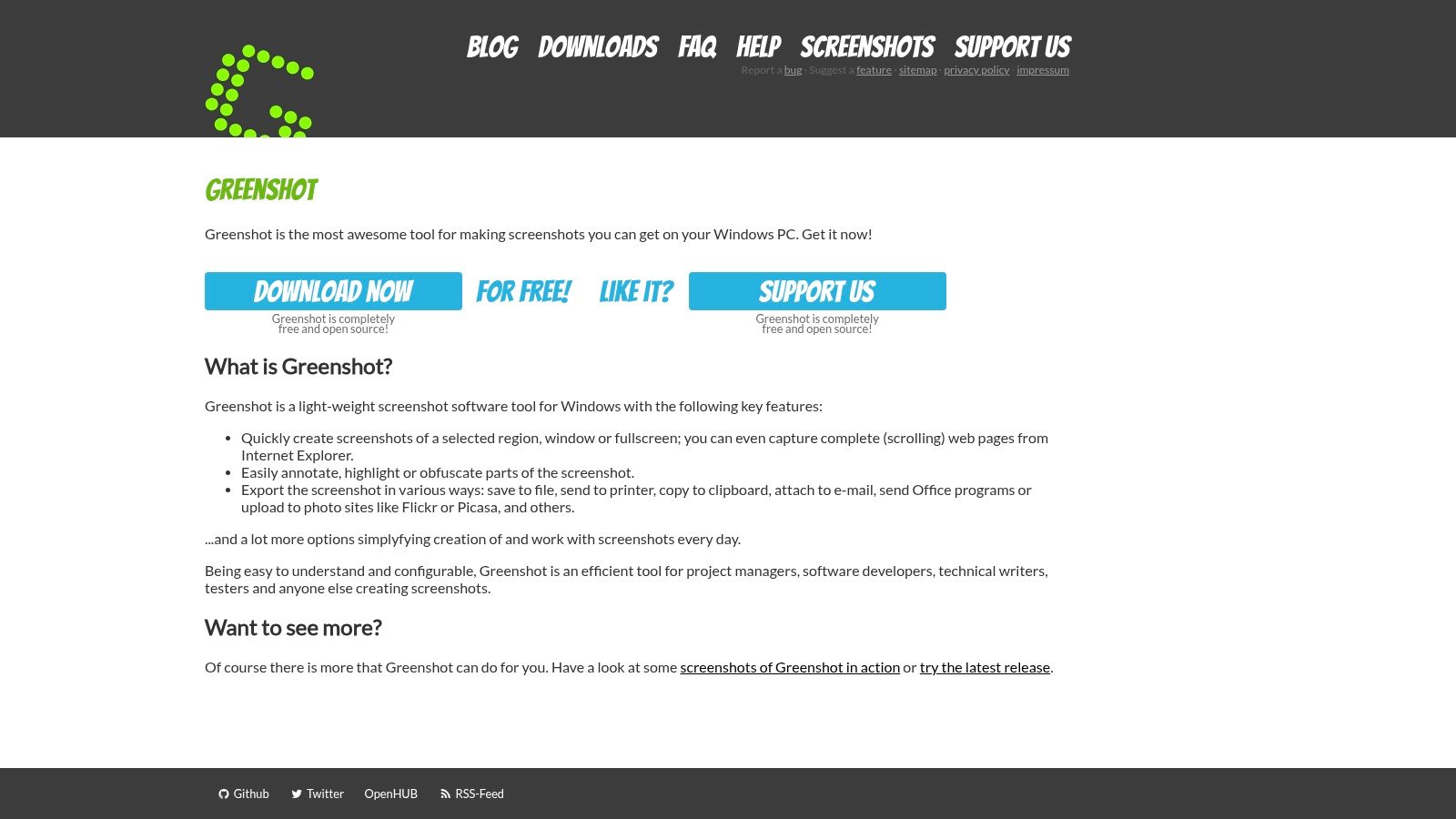
Greenshot is the practical recommendation for fast, no-frills Windows capture. It handles region, window, and full-screen screenshots, then sends them to a file, clipboard, email, or another supported destination. Its editor is intentionally straightforward, so a support agent can mark the relevant button, blur a customer identifier, and send the image without learning a complex production tool.
A minimal workflow is also its advantage. Capture the region, add only the markup needed to remove ambiguity, and send the result to the destination your team already uses. Plugins for destinations such as Jira and Imgur can fit issue-reporting routines without requiring a broader collaboration platform.
The best lightweight tool is the one people can use correctly without stopping to configure it.
Greenshot's strongest experience is on Windows. The macOS app is a separate, simpler paid version, so teams should not assume platform parity. It also lacks the advanced editing, video, automation, and documentation depth found in Snagit, ShareX, or Screenpresso.
Choose Greenshot for support queues, internal bug reports, and everyday desktop utility work. Do not choose it if you need polished recordings, long-form guides, advanced upload rules, or a shared cloud library. Its open-source Windows model and low learning effort make it a reliable standard for teams that value consistency over feature breadth.
5. PicPick
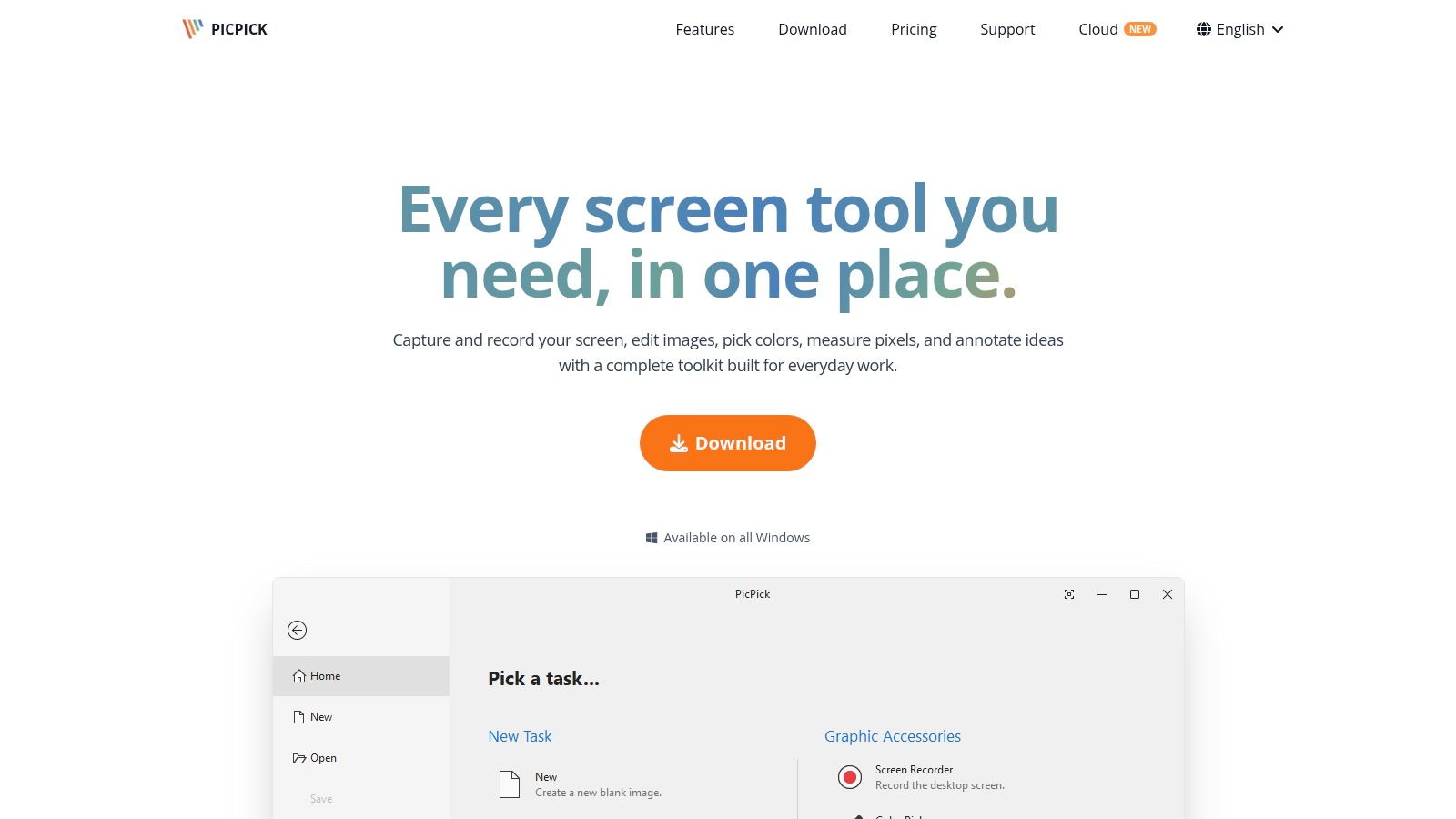
PicPick is the right choice when a screenshot is only one part of visual inspection. It combines capture and annotation with a built-in editor and design utilities including a color picker, pixel ruler, and protractor. That makes it particularly useful for front-end developers and designers checking whether an implementation matches a visual reference.
A front-end developer can capture a misaligned component, sample the color of a neighboring element, measure spacing with the pixel ruler, and annotate the discrepancy without switching applications. The editor then provides a place to crop, mark, and prepare the image for a local review or shared destination.
The utilities matter more than cloud features in this workflow. A developer diagnosing a padding mismatch may gain more from accurate measurement than from an instant link, especially when the review stays inside a local issue tracker or design conversation.
Know the licensing boundary
PicPick is Windows only. Its free tier is for personal use, so commercial teams need to confirm the appropriate license before standardizing it across company devices. That restriction is easy to overlook when evaluating the tool on an individual machine.
Choose PicPick over other Windows capture tools when you need inspection tools integrated into capture. Choose ShareX when programmable after-capture and upload workflows matter more. PicPick's value comes from combining visual measurement and markup in one place, not from trying to replace a cloud collaboration system.
6. Screenpresso
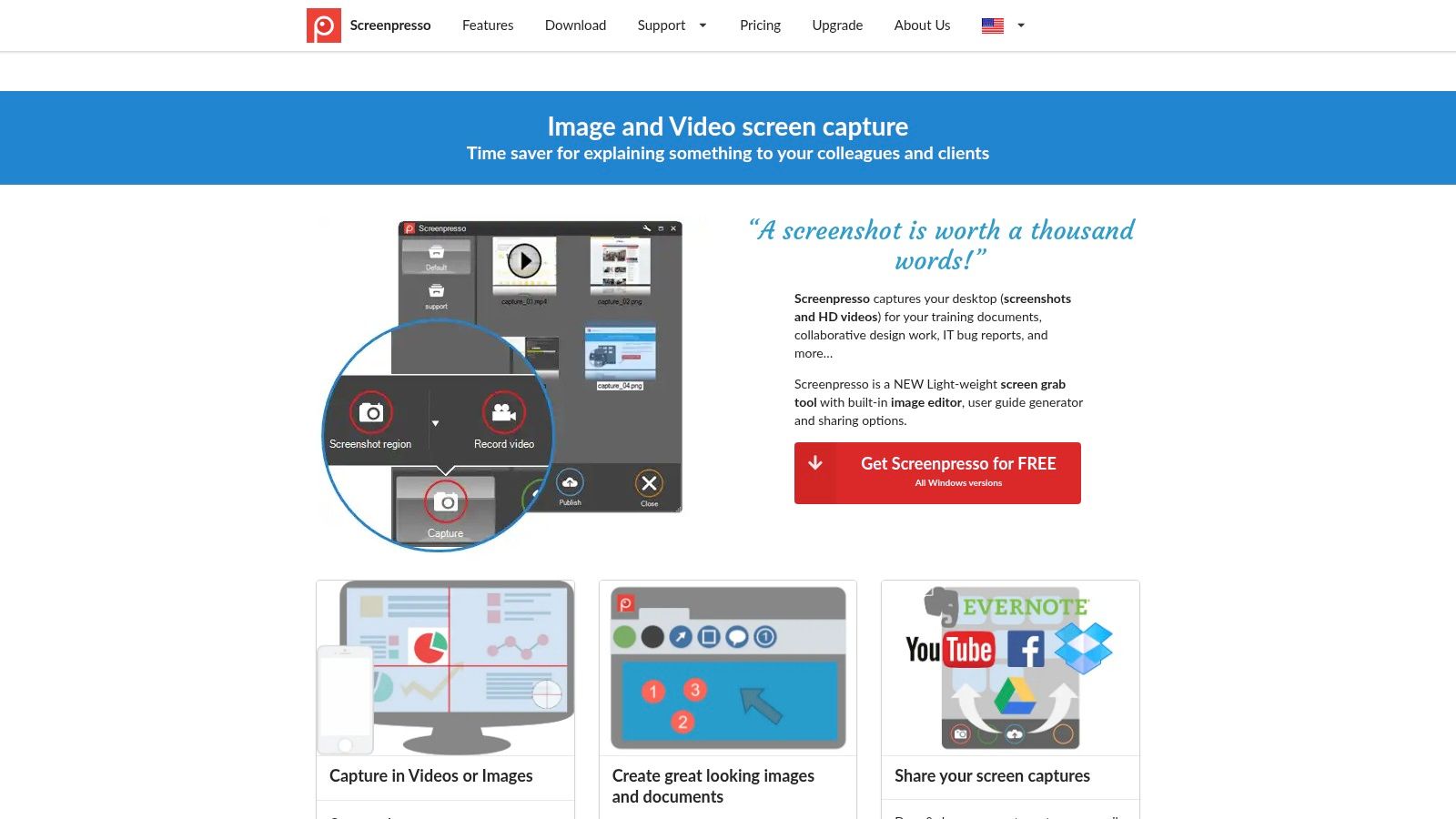
Screenpresso is built for organizations that turn captures into repeatable support and IT documentation. It combines image and HD/4K video capture, OCR, a full editor, blur and redaction tools, workspaces, and a document generator for how-to guides. The product makes more sense as a process-documentation system than as an occasional screenshot utility.
An IT team can create a standard capture template, store related images and recordings in a workspace, generate a guide, and review every output for exposed credentials, customer information, or internal URLs before publishing. OCR helps convert visible interface text into reusable content, while redaction supports a deliberate privacy review rather than an improvised blur added at the end.
Choose between documentation depth and simplicity
Screenpresso offers a perpetual license option, which can suit organizations planning a controlled rollout. Enterprise deployment options also matter when administrators need to distribute a consistent configuration. The free version may place branding on outputs, and the product is Windows-centric, so teams should test its publishing workflow on the devices that will use it.
Snagit remains the stronger choice when enterprise documentation resources, cross-platform operation, and a mature publishing ecosystem are the priority. Screenpresso is more compelling when a perpetual license and built-in document generation fit the rollout plan. Greenshot is the better choice when employees only need quick captures and basic markup.
7. Zight
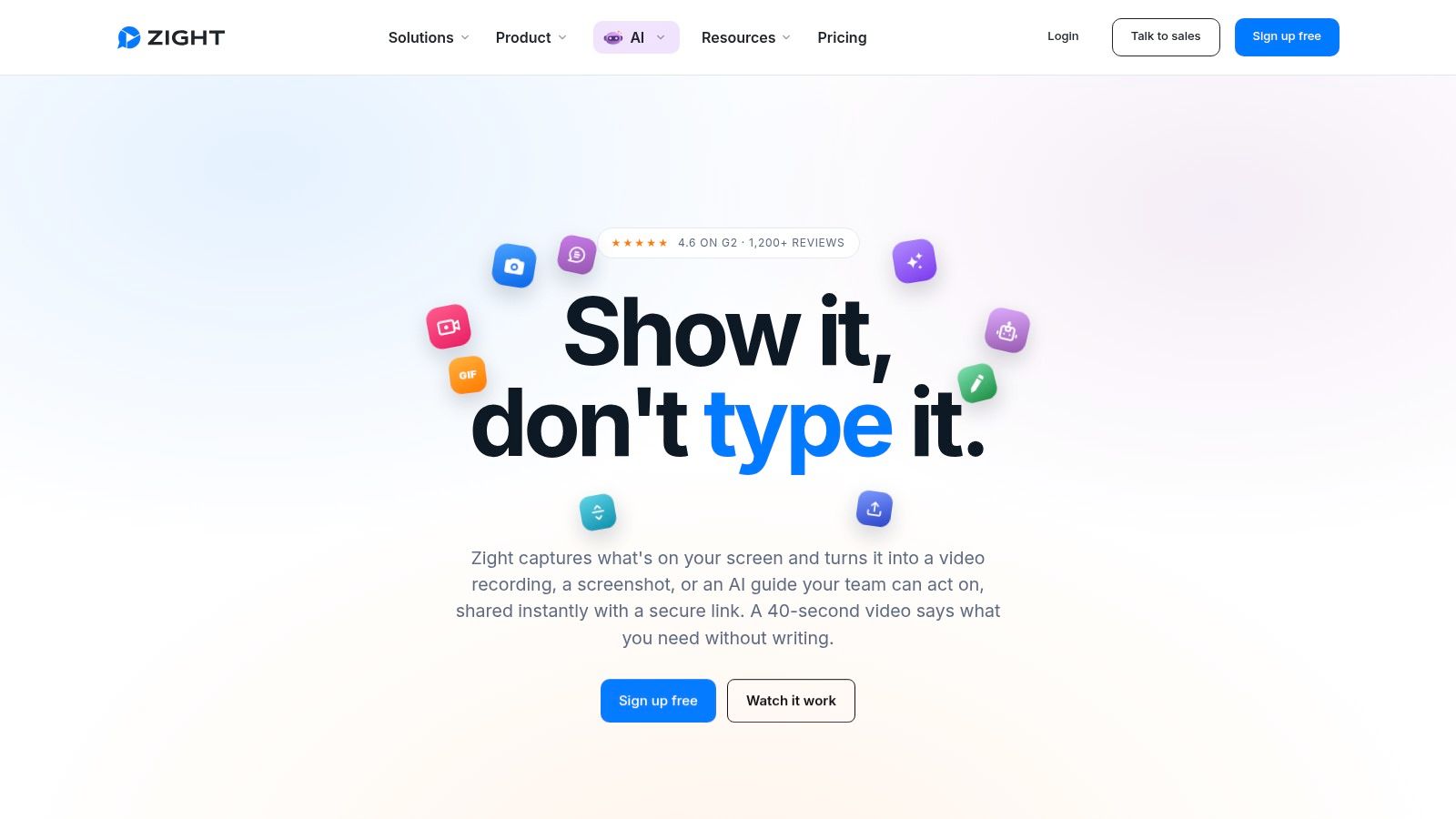
Zight is the best screenshot app for async collaboration where context needs to move quickly between capture and conversation. It combines screenshots, GIFs, videos, instant share links, workspace storage, branding, admin controls, and integrations with tools such as Zendesk, Intercom, and Salesforce.
A support agent can capture a customer-facing issue, add a short explanation or recording, share a link in the ticket, and keep the asset in a team workspace for follow-up. A product team can use the same flow for release feedback, while higher tiers add AI actions such as summaries and step guides.
That workflow is powerful because the link becomes the handoff. It is also the reason Zight can be excessive for someone who only needs local PNG files. The product's core value depends on cloud storage, workspace organization, and collaboration features, so buyers should define who may create links, who may view them, and how long assets remain available.
Treat compliance as a configuration question
The supplied product brief identifies SOC 2 and a HIPAA add-on on enterprise plans. Those options do not automatically make every workflow compliant. Confirm the relevant agreement, controls, retention settings, access model, and integrations before placing regulated information in the service.
Choose Zight over Markup Hero when your team needs screenshots, GIFs, recordings, support integrations, and workspace administration. Choose a local-first tool when self-hosted or local storage matters more than instant collaboration.
8. Monosnap
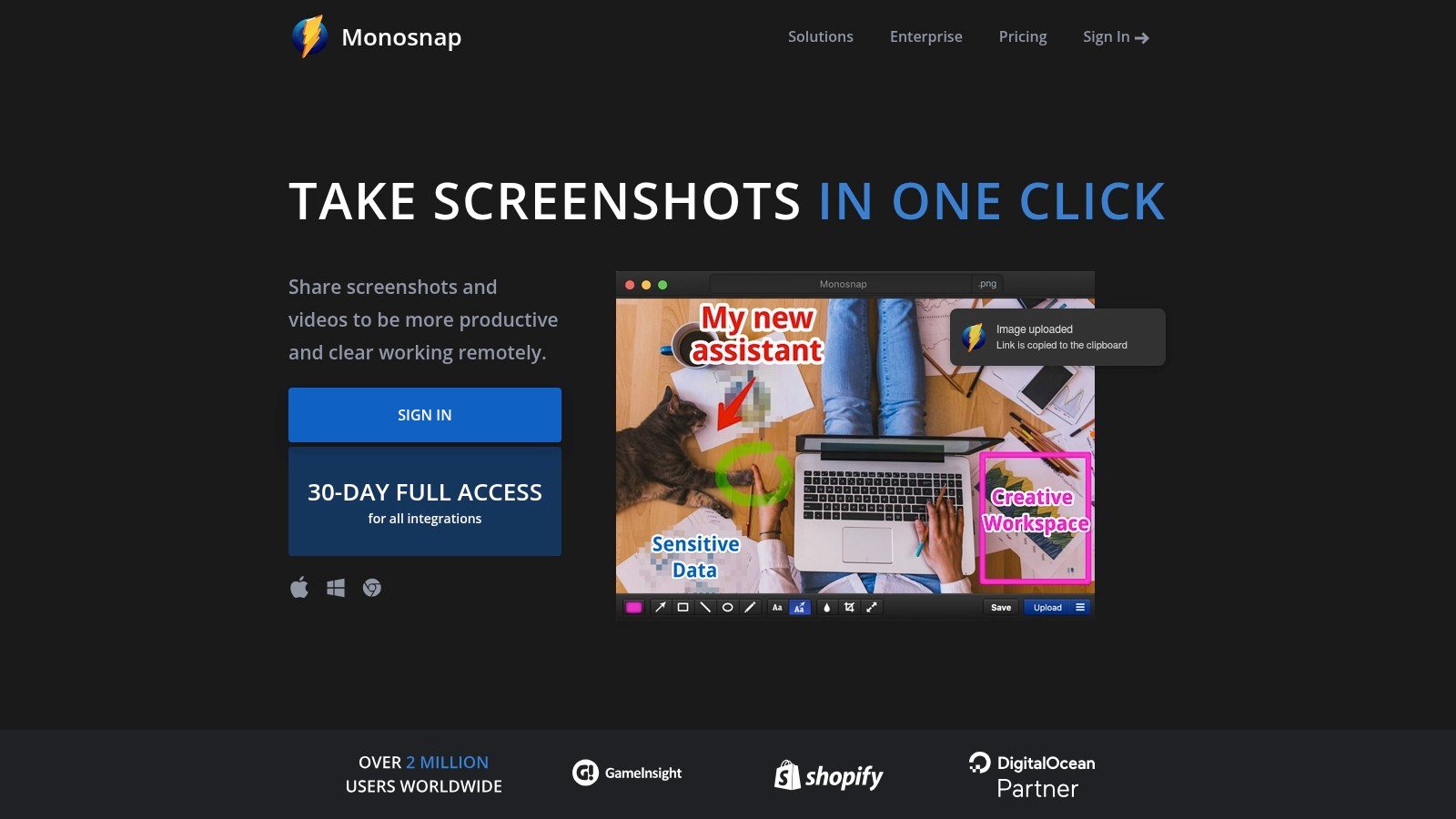
Monosnap is a flexible middle ground for teams that need desktop capture on Windows and macOS plus more than one storage destination. It supports screenshots, video, annotation, uploads to Monosnap cloud and third-party storage including S3, along with team and workspace options.
For QA, the workflow is direct. Capture the failing state or a short reproduction video, annotate the important area, then upload it to Monosnap cloud or an approved S3 destination. That gives a cross-platform team more storage flexibility than a tool tied to one vendor's collaboration layer.
The compromise is depth. Monosnap does not offer the documentation system of Snagit or Screenpresso, and it does not provide ShareX's broad Windows automation model. It is a practical choice when platform coverage and destination flexibility are more important than advanced guide generation.
Verify the commercial details before rollout
Monosnap's pricing details and plan structure have changed over time and surface primarily in-app, so confirm current terms before budgeting for a team. Review cloud retention, S3 permissions, link access, and workspace ownership as part of the same evaluation.
Choose Monosnap over Zight when your team wants flexible storage destinations without making a collaboration-first cloud workspace the center of the workflow. Choose Greenshot when local simplicity is enough. Monosnap earns its place for organizations that need Windows and macOS desktop coverage and want a path toward shared storage without committing every capture to one destination.
9. Markup Hero
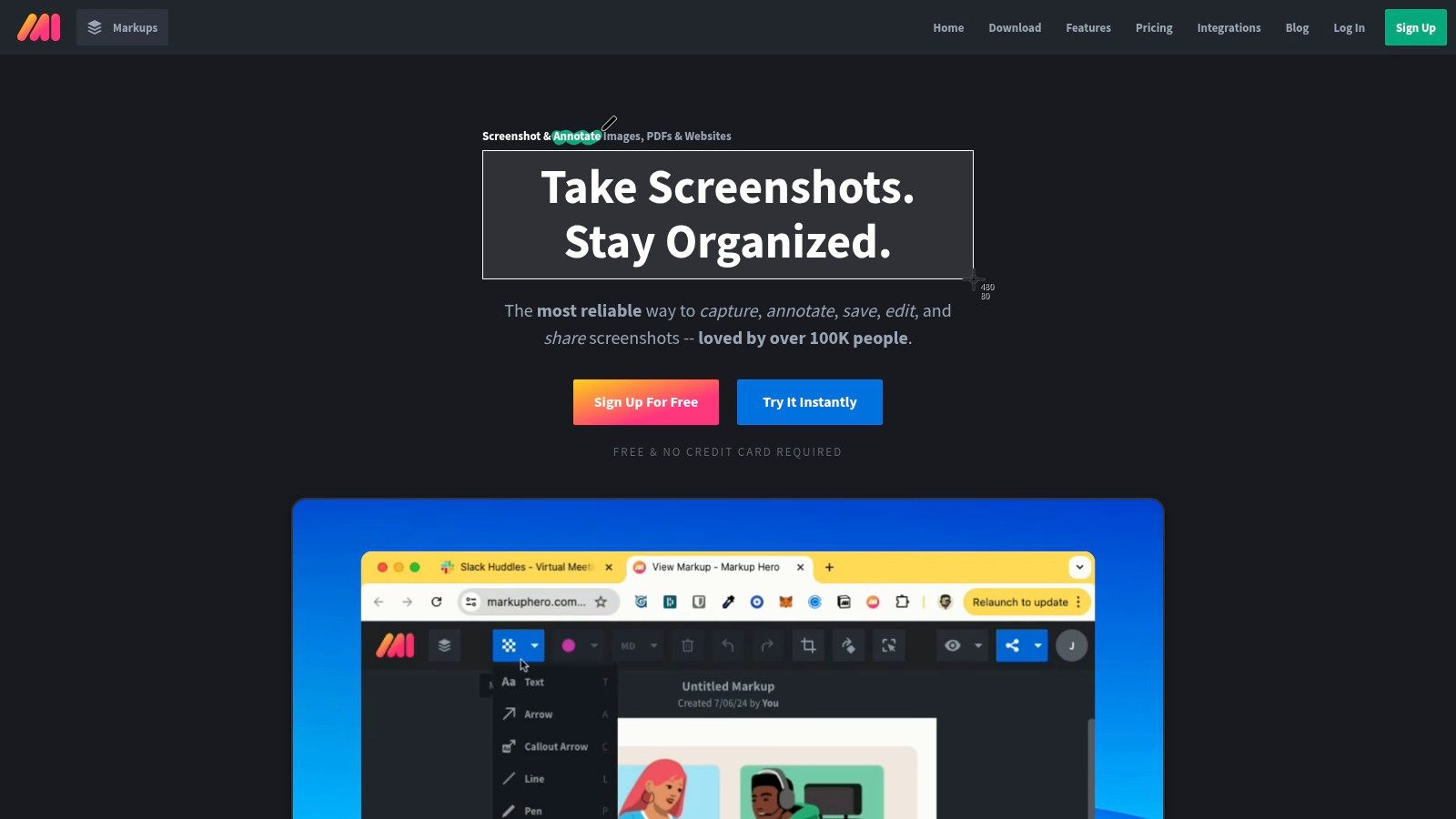
Markup Hero is the strongest fit for collaborative feedback that must remain editable. It supports screenshot capture and image or PDF uploads, more than 30 annotation tools, editable annotations, multi-page PDFs, shareable links, layered comments, and integrations with Google Drive, Google Docs, and Notion.
A design reviewer can capture or upload an interface, add arrows and callouts on separate layers, share the asset, and gather comments without flattening the markup into a final image. That distinction matters when reviewers need to move, revise, or remove an annotation during an async conversation.
Markup Hero is not a full image editor like Snagit. It is better at keeping feedback attached to an asset than at producing polished marketing visuals, advanced recordings, or extensive image effects. Its online flow is central to the product's value, so teams should evaluate cloud access, retention, and handling of sensitive PDFs before adoption.
Choose Markup Hero over Zight when editable review feedback matters more than a broad media and workspace platform. Choose Snagit when the final deliverable is a formal guide. For small teams, Markup Hero's simple collaboration model can reduce the friction between capture, markup, and decision.
Top 9 Screenshot Apps, Feature Comparison
| Product | Core features | UX & quality | Price / Value | Target audience | Unique selling points |
|---|---|---|---|---|---|
| ScreenSnap Pro | Screenshots, screen recording, OCR, website capture, 500+ gradients, editor | ★4.8 polished cross-platform | 💰 $39 one-time, lifetime updates | 👥 creators, docs, educators | ✨ All-in-one capture+editor, curated gradients, privacy-focused cloud |
| TechSmith Snagit | Scrolling capture, rich annotations, redaction, guide generation, Screencast | ★4.5 enterprise documentation | 💰 Subscription (2025), enterprise plans | 👥 documentation & onboarding teams | ✨ Auto Step Capture, templates, robust redaction |
| ShareX | Region/scrolling/window capture, GIF/MP4 recording, automation, uploads | ★4.3 power-user flexibility | 💰 Free (open source) | 👥 developers & power users | ✨ Highly scriptable workflows & custom endpoints |
| Greenshot | Quick region/window/fullscreen capture, simple annotate, export/plugins | ★4.0 fast & minimal | 💰 Free (Windows); paid macOS app | 👥 support teams & fast-workflow users | ✨ Extremely quick capture, low learning curve, plugin support |
| PicPick | Capture + editor, color picker, pixel ruler, protractor, share | ★4.1 designer-oriented | 💰 Free personal; paid commercial license | 👥 front-end developers & designers | ✨ Built-in measurement & design utilities for visual debugging |
| Screenpresso | Image & HD/4K video capture, OCR, editor, document generator, workspaces | ★4.2 documentation workflow | 💰 Freemium; perpetual license available | 👥 IT & support documentation teams | ✨ Document generator + workspace rollouts, perpetual licensing |
| Zight (CloudApp) | Screenshots, GIFs, videos, instant links, workspaces, integrations, AI actions | ★4.0 collaboration-first | 💰 Subscription & team plans (enterprise pricing) | 👥 product, support & ops teams | ✨ Workspace branding, integrations, AI actions on higher tiers |
| Monosnap | Screenshot & video capture, annotation, uploads to Monosnap/S3, team options | ★4.0 cross-platform | 💰 Freemium; in-app plans (varies) | 👥 QA & support teams | ✨ Cross-platform desktop + flexible storage destinations (S3) |
| Markup Hero | Capture/upload, 30+ editable annotations, multi-page PDFs, shareable links | ★4.0 quick collaborative markup | 💰 Freemium; affordable small-team pricing | 👥 designers & small review teams | ✨ Editable layered annotations, comments attached to assets |
Build a Faster, Safer Capture Workflow
There is not one universal winner. The best screenshot app is the one that matches the work people repeat most often, the devices they use, the places they share captures, and the sensitivity of the information on screen.
Choose Snagit or Screenpresso for repeatable documentation. Snagit is the stronger cross-platform option for structured guides, templates, support resources, and enterprise publishing. Screenpresso fits Windows-centric organizations that want OCR, workspaces, document generation, deployment options, and a perpetual license path.
Choose ShareX for Windows automation, custom endpoints, hotkeys, and after-capture or after-upload actions. Choose Greenshot when a team needs an open-source Windows utility that people can learn quickly and use for straightforward support or bug reports.
For visual inspection, PicPick is the clear recommendation because its color picker, pixel ruler, and protractor extend the workflow beyond capture. Zight is the collaboration choice for teams that need instant links, recordings, workspaces, support integrations, and administrative controls. Monosnap is the better fit when Windows and macOS coverage combines with flexible storage destinations such as cloud storage or S3.
Choose Markup Hero when comments and annotations need to remain editable across design or development review. ScreenSnap Pro is the strongest all-purpose choice for users who want macOS and Windows coverage, integrated recording, OCR, polished framing, optional cloud sharing, and a one-time license without assembling several separate applications.
Set up the workflow before standardizing the tool
Define the default capture hotkey: Pick a shortcut that works across the applications people use every day.
Choose local or cloud storage: Decide which captures stay on the device and which may use links or team workspaces.
Configure redaction before sharing: Make blur, pixelation, or redaction part of review rather than an afterthought.
Create naming and folder conventions: Use predictable project, issue, and date labels so local captures remain findable.
Test scrolling capture: Use representative pages, including long documentation and complex web applications, before promising the feature to a team.
Standardize destinations: Send bug reports to one approved issue workflow and design feedback to one review location.
Privacy deserves more attention than most screenshot roundups give it. Buyers should ask where an image goes after capture, whether sensitive content can be blurred automatically, whether a link is public or access-controlled, what metadata remains attached, and how retention is governed. Screen-capture adoption also varies sharply by region. A 2024 to 2026 market-research source reports that roughly 68% of U.S. remote workers use screen-capture tools regularly, compared with about 20% of users in Sub-Saharan Africa who report familiarity, and projects global screen-capture software growth at more than 10% CAGR. Treat those figures as market context from the cited source, not as a reason to deploy a tool without checking local workflow and privacy needs. Review the cited screen-capture market comparison.
Alternatives and downstream references
This roundup favors tools with distinct workflows rather than listing near-duplicates. Some users may prefer a built-in operating-system utility, a specialized recorder, or another focused annotation product, but those options do not replace the documentation, automation, collaboration, storage, or cross-platform choices evaluated here.
For interface work, Pagedone is a useful downstream reference rather than a direct screenshot competitor. Its open-source Tailwind CSS components, blocks, templates, Figma resources, documentation, and copy-paste workflow can give designers and developers a consistent interface reference when they are reviewing screenshots or documenting a Tailwind implementation. Explore Pagedone's Tailwind CSS components and design resources.
For additional platform-level guidance, readers can also review Apple's built-in screenshot shortcuts for Mac, Microsoft's capture options in the Snipping Tool for Windows, and Google's overview of using screenshots in Chrome. Those references are useful when deciding whether a dedicated screenshot app is necessary or when documenting fallback workflows for employees who prefer native tools.
Test one tool against your most frequent capture task, your team's collaboration requirement, your platform, and your privacy constraint. Once the tool passes those four checks, standardize the hotkeys, storage rules, redaction steps, and destinations across the team, then review the workflow after real bug reports and design reviews rather than choosing from feature lists alone.
Choose your primary workflow today, install the matching tool, and run one real capture from start to finish. Confirm the image quality, markup speed, sharing permissions, storage destination, and handoff experience before rolling it out to everyone.