

A Figma frame gets approved on Tuesday, and by Thursday the build still starts from a half-remembered list of spacing values, breakpoints, and button states. The visual prototype looked settled, but the implementation questions are still open: which component owns the interaction, what happens when content is missing, and how closely should the code match the design system?
That gap between a visual prototype and shippable code is where much of the handoff time disappears. AI prototyping tools can narrow it, but they don't all solve the same problem. Some are excellent at rough flows, some create polished layouts, and others produce code a developer can inspect and extend.
This roundup ranks 10 AI prototyping tools by where they sit in the design-to-code handoff, from low-fidelity ideation canvases to code-backed prototypes. Pagedone, an open-source Tailwind CSS component library with matching Figma assets, provides the shared reference for the workflow examples. Its components, blocks, templates, documentation, and parallel design resources show why a common vocabulary matters. A generated screen is easier to hand off when designers and developers are working from the same buttons, spacing patterns, tokens, and interaction assumptions.
The list starts with the tool I'd choose when the problem isn't a blank canvas, but missing product context.
Table of Contents
- 1. Figr
- 2. Uizard
- 3. Visily
- 4. Stitch by Google
- 5. Figma AI
- 6. Relume AI
- 7. Framer AI
- 8. v0 by Vercel
- 9. Anima
- 10. Builder.io Visual Copilot
- AI Prototyping Tools, 11-Tool Comparison
- Choosing Your AI Prototyping Stack for the Next Sprint
1. Figr
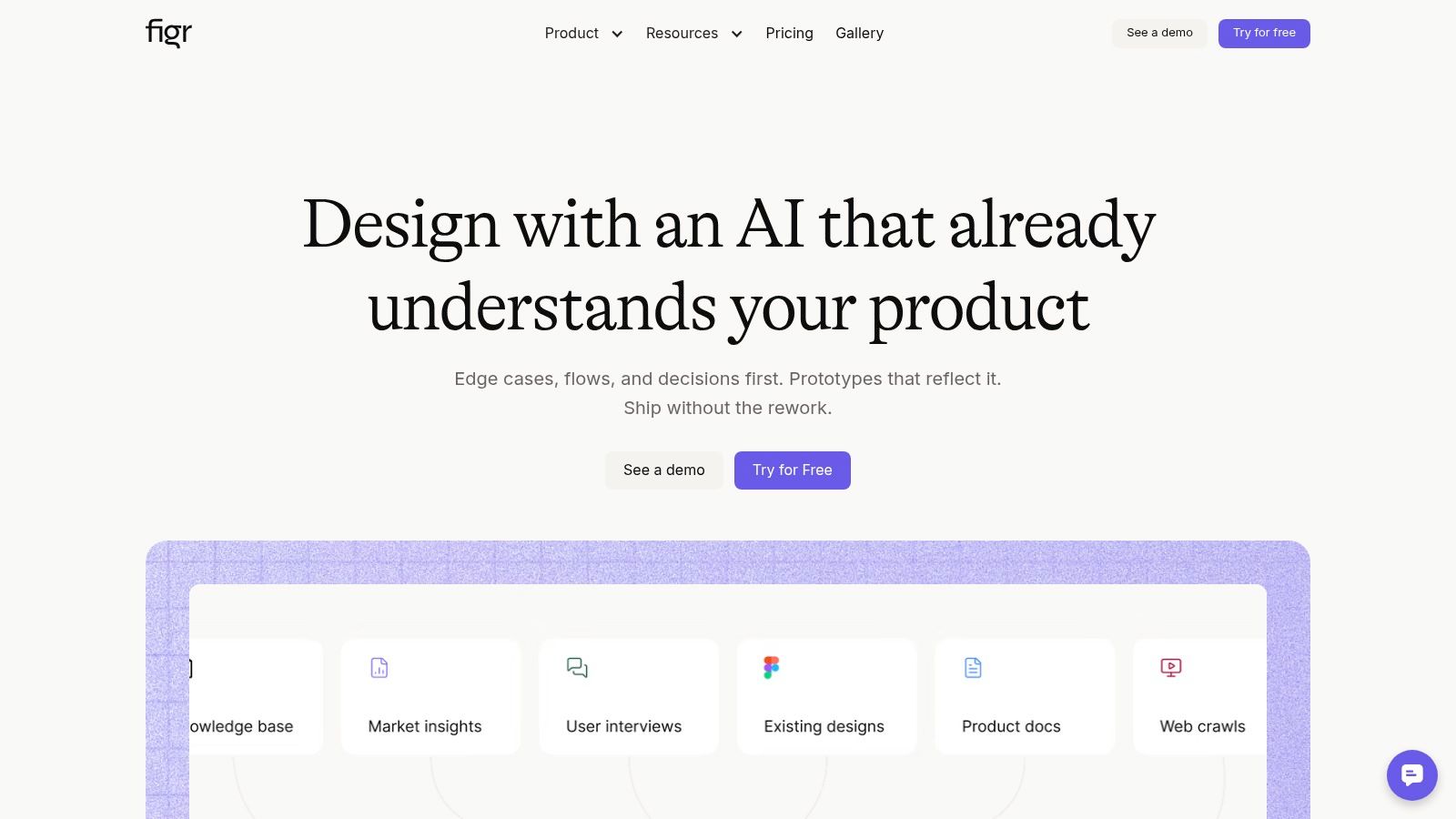
Figr sits near the product-thinking end of AI prototyping. It isn't just a prompt box that turns a sentence into a generic dashboard. Its strongest use case is helping a product team understand an existing experience, make design decisions in context, and produce artifacts that can move toward review and implementation.
Figr can capture a live application through a Chrome workflow, import Figma systems and tokens, and retain decisions across sessions. From there, it can help generate product requirements documents, user flows, edge cases, test cases, UX reviews, and high-fidelity prototypes that reflect the existing product rather than starting from an unrelated visual template.
That distinction matters when you're prototyping an addition to a mature SaaS product. A new billing flow, settings screen, or onboarding branch needs to respect existing navigation, terminology, states, and component behavior. A visually attractive prototype that ignores those constraints creates more handoff work, not less.
Where Figr earns its place
Figr's product-context approach is useful for teams that need to explore alternatives without losing the reasoning behind them. It can support A/B variations with rationale, identify edge cases before handoff, and turn design decisions into QA cases. Its analytics connection can also help teams compare funnel behavior with broader benchmarks and identify drop-off areas, provided the relevant product data is available and configured correctly.
The tool's analysis of more than 200,000 screens, along with accessibility checks and design-token enforcement, is positioned as a way to make generated work more grounded in established interface patterns. Those capabilities don't replace usability research or engineering review, but they can make the first draft more relevant than an unconstrained prompt.
For a Pagedone-based workflow, I'd use Figr to map the product flow and identify the screens and states that need to exist. I'd then rebuild the approved UI with matching Pagedone Figma resources and Tailwind components, so the prototype doesn't become a disconnected artifact.
Practical rule: Use Figr when the hard question is “What should this product experience contain?” Use a code-focused tool when the hard question is “How should this become maintainable front-end code?”
Figr is a strong choice for product teams, agencies, and larger organizations that need repeatable UX decisions, design-system alignment, and traceable handoff artifacts. Enterprise features such as SOC 2 compliance, SSO, and zero data retention may also matter when teams are evaluating how product information moves through an AI workflow. The trade-off is that this depth can be unnecessary for a one-screen concept or a quick marketing-page sketch.
2. Uizard
Uizard is built for the earliest visible stage of prototyping, when a product idea needs shape before anyone debates implementation. You can start with a prompt, a hand-drawn sketch, or a screenshot, then turn that input into editable interface screens and clickable flows.
Its Autodesigner is useful when a product manager, founder, researcher, or engineer needs to show a multi-screen concept without first mastering a full design system. The sketch and screenshot import workflows are especially practical in workshops. A rough drawing of a mobile checkout or an image of a competing flow can become a digital starting point that the team can discuss and revise.
The right level of fidelity
Uizard works best when the team is asking whether the flow makes sense, not whether the final CSS is ready for a pull request. Its templates for apps, SaaS products, and landing pages help users reach a coherent first draft quickly. The in-app prototyping features make it possible to test navigation and screen sequence before committing to detailed design.
That speed lowers the cost of early disagreement. If a stakeholder dislikes the placement of a step, changing the concept in Uizard is less expensive than asking a developer to revise a partially implemented feature. It also gives non-designers a way to communicate structure with something more concrete than a written brief.
The limitation is equally clear. Uizard isn't intended to generate a complete production website or application. Teams will usually recreate the approved interface in Figma, a code-backed prototyping environment, or their application code. If the next handoff requires Pagedone components, treat the Uizard output as a flow reference, then rebuild the selected screens with the corresponding Tailwind-aligned blocks and states.
Choose Uizard when accessibility to the tool matters more than implementation fidelity. Choose something farther down this list when the prototype must already reflect real component code, responsive behavior, or application logic.
3. Visily
Visily occupies the space between rough discovery and more polished design work. It helps teams generate wireframes from prompts or reference images, then refine those wireframes through drag-and-drop editing and design suggestions.
That combination is useful in a workshop where several people need to contribute. A product manager can describe a dashboard, a designer can adjust hierarchy, and a developer can point out an interaction that the flow has missed. The team isn't forced to begin with a blank canvas or a detailed visual system before it understands the concept.
Visily's template libraries and collaboration features support that shared process. Its AI credit model also changes how teams should work with it. On paid plans, generation is credit-metered, so broad experimentation needs some discipline. Create a few meaningful directions, compare them, and keep manual refinement for decisions that don't need another generation pass.
What Visily does well
The tool's first-draft speed is its main advantage. It can turn a prompt or example image into a wireframe that gives a discovery session something concrete to challenge. That makes it a good fit for internal tools, SaaS concepts, and early product workshops where visual polish would distract from information architecture.
The trade-off is that Visily is less suitable for production-level visual precision. Its output can establish screen structure and user intent, but it shouldn't be treated as proof that spacing, responsive behavior, accessibility, and component states are solved.
For a Pagedone workflow, use Visily to settle the screen inventory and hierarchy. Once the team agrees on the structure, move into Figma with the matching Pagedone resources or into a Tailwind-based implementation. The shared component vocabulary should begin before engineering starts, not after a developer has to interpret a wireframe.
Visily is the practical choice when cross-functional participation and fast discovery matter most. It becomes a weaker choice when a team needs code export, deep design-system enforcement, or a prototype that behaves like the eventual product.
4. Stitch by Google
Stitch is a browser-based workspace for turning prompts or reference images into multi-screen, high-fidelity UI concepts. It is most useful at the point where a team has moved beyond rough wireframes but still needs to explore visual directions before investing in detailed design and engineering.
The prompt-to-UI workflow makes it easy to generate an initial direction, then refine it through follow-up instructions. Reference-image input gives the team another way to communicate visual intent when words alone aren't precise enough. For stakeholder alignment, that combination can be more persuasive than a set of disconnected wireframes because the screens share a visual direction.
Handoff through Figma and code
Stitch's practical advantage is that it doesn't have to remain a closed experiment. Teams can paste work into Figma for continued design refinement, and code export provides a front-end starting point. That doesn't mean the exported result should go straight to production. It means the prototype can travel farther than a static concept without forcing designers to abandon their main tool.
The Gemini-powered canvas is also part of the product's appeal, although the workflow and feature set continue to evolve as an experimental Google Labs product. Teams that need predictable governance, stable behavior, or a fixed enterprise process should account for that status before making Stitch a central workflow dependency.
I'd use Stitch for a quick multi-screen exploration of a new marketing flow or application concept. Then I'd compare its visual direction against Pagedone's Figma assets before choosing the components that should carry into implementation. If the generated design uses patterns that don't map cleanly to the available Tailwind components, that mismatch is an early warning, not a detail to postpone.
Stitch is a strong zero-to-something tool. It helps a team reach a credible concept quickly, but the actual design system and production handoff still belong in Figma and code.
5. Figma AI
Figma AI is the natural choice for teams whose source of truth already lives in Figma. Its advantage isn't that it creates a separate prototyping universe. The advantage is that AI-assisted generation, editing, content work, FigJam collaboration, Slides, and Make can happen within an environment the team already understands.
That continuity reduces a common handoff problem. Designers don't have to export a concept from an unfamiliar generator, and developers can continue using the libraries, file structure, annotations, and references that already support the product workflow. Figma's AI features can assist with wireframes, edits, content generation, and code-agent workflows while preserving the team's existing canvas and organizational model.
Governance matters more at team scale
Figma's credit-based usage model makes governance part of the decision. Availability can vary by plan and sector, including government and education contexts, and heavy usage needs monitoring. A team should define which tasks justify AI credits, who reviews generated work, and how approved files connect to the design system.
The tool is especially effective when Figma is the source of truth. If the team uses Pagedone, the design file can reference the same component structures and visual decisions that appear in Tailwind code. That doesn't guarantee a perfect implementation, but it gives the developer something inspectable instead of a screenshot with implied behavior.
Figma AI is less compelling when the team needs a fully independent code-backed prototype or when its existing files lack consistent components and tokens. AI can accelerate an organized system, but it won't remove the need to clean up an inconsistent one.
Choose it when your organization already works in Figma and wants AI assistance without fragmenting the workflow. It is the safest default for established design teams, but not automatically the best tool for testing backend behavior or generating a deployable application.
6. Relume AI
Relume AI is designed around website structure. It can turn a brief into a sitemap, generate wireframes, apply style-guide decisions, and assemble section-level layouts from a large component library.
That focus makes Relume particularly useful for marketing sites, agency projects, and content-led experiences. The early information-architecture phase often consumes more time than the final page assembly because teams need to agree on page purpose, hierarchy, navigation, and content sections. Relume gives those decisions a visible structure before someone spends time polishing individual screens.
A good agency handoff
Relume's component library, including more than 1,000 responsive components, and its Client-First naming approach are intended to support fast assembly and clearer exports. The tool can export to Figma, Webflow, or React, publish through Relume, and connect with Webflow and AI-editor workflows.
For an agency, that range of destinations matters. A strategist can create the sitemap, a designer can refine the Figma version, and a developer can choose whether the output should move toward React or another implementation route. Pagedone provides a similar reference point for Tailwind teams, especially when a site needs reusable hero, pricing, FAQ, feature, testimonial, contact, or product sections.
Relume is less suitable for complex application logic. It can define the pages and interface patterns around an application, but it isn't the tool I'd choose to validate intricate state transitions, data permissions, or operational workflows. Export options and feature availability can also vary by plan, so confirm the intended destination before building a full client pipeline around it.
Use Relume when the prototype's main risk is poor website structure or slow page assembly. Use a code-backed tool when the question is whether an application interaction works under realistic states.
7. Framer AI
Framer AI takes a prompt-driven approach to editable marketing websites. It can generate a site on a visual canvas, then let the team adjust layouts, components, breakpoints, spacing, and design tokens before publishing.
That makes it useful when the prototype needs to become a live, testable page rather than remain a design file. A product marketer can generate a landing-page direction, refine the content and layout, publish it, and use the result for feedback or experimentation without handing every change to engineering.
Where live prototypes help
Framer's key strength is the short path from concept to public or shared website. The canvas preserves manual control, so teams aren't limited to accepting or rejecting a black-box result. Breakpoints and design tokens can be adjusted in context, which is important when a generated desktop layout needs to behave sensibly on smaller screens.
Hosting, publishing options, and add-ons make Framer practical for marketing teams and agencies. Paid plans include monthly AI credits, so larger projects still require awareness of credit usage. The more important trade-off is scope. Framer is strongest for landing pages, marketing sites, and fast content changes. It isn't the natural choice for a complex application interface with deep product logic.
A Pagedone comparison is useful here. Framer can validate the live presentation and content hierarchy, while Pagedone can provide the Tailwind components and Figma assets for a team that expects the final site to live inside its own front-end codebase. If the prototype is likely to be rebuilt in React or another application stack, document the selected components and tokens rather than assuming a visual export will preserve the intended structure.
Choose Framer when publishing quickly is part of the validation plan. Choose Relume for earlier sitemap and wireframe work, or v0 and Anima when the next handoff needs code.
8. v0 by Vercel
v0 sits much closer to implementation than the visual-first tools above it. It generates React, Tailwind, and shadcn/ui code, offers a visual design mode alongside chat prompting, and connects with GitHub and Vercel workflows.
That makes it a strong fit for developers who want AI to draft real front-end structure rather than produce a mockup that must be recreated manually. A dashboard, pricing page, settings screen, or SaaS marketing interface can start as a prompt and become an editable code-backed prototype that a developer can inspect and refactor.
Why Tailwind output changes the handoff
For teams already using Tailwind, v0's output fits a familiar implementation model. Pagedone components can provide a second layer of standardization, especially when the generated interface needs buttons, forms, tables, tabs, modals, navigation, or page blocks that already have documented Tailwind patterns.
The useful workflow isn't “generate and ship.” It is “generate, identify the reusable structures, replace weak or duplicated pieces, then align the result with the team's component system.” That approach preserves speed while avoiding a prototype full of one-off classes and unclear state ownership.
v0's path toward GitHub and Vercel can shorten the distance to a deployed demo. Its usage is credit or token-metered, and larger builds require planning around limits. Generated code remains a starting point, though. Developers still need to check responsive behavior, keyboard access, loading and empty states, error handling, dependency choices, security, and maintainability.
Stack Overflow's 2025 global developer survey found that 84% of respondents were using or planning to use AI tools in development, while 46% actively distrusted AI output accuracy and 33% trusted it. Those findings support a practical v0 workflow: use the tool to accelerate scaffolding, but treat review as part of the prototype rather than an optional cleanup step.
v0 is the right choice when the handoff is failing because designers and developers need a working front-end starting point. It is less suitable for teams without React or Tailwind experience, or for prototypes whose main purpose is exploring product logic before code.
9. Anima
Anima addresses a more specific handoff problem: a Figma design exists, and the team needs to turn it into workable front-end code without manually rebuilding every layout detail.
It can generate React, HTML, or Vue output, support Tailwind CSS, map designs to UI libraries such as shadcn, and connect to agent workflows through its API. The Dev Mode plugin and Playground provide places to inspect and iterate on the generated result before it enters a broader codebase.
Anima's Tailwind support makes it relevant to Pagedone users. A team can map the generated structure toward its Tailwind configuration, then use Pagedone as the source for standard components and patterns rather than accepting every generated element as a new abstraction. That helps keep the code closer to the existing system.
The code is a head start, not an architecture
Figma-to-code tools are often judged by how closely the first output resembles the design. A practitioner should also ask whether the code has sensible component boundaries, predictable responsive behavior, accessible semantics, and a maintainable relationship with the application's data and state.
Anima can accelerate the front-end starting point, but teams still need to refactor for scale. Some Figma interactions and edge cases aren't fully supported, and visual fidelity doesn't prove that the implementation handles real content or user behavior. A prototype with perfect spacing can still fail when a table has no rows, a form returns an error, or a user moves through the interface with a keyboard.
Generated code should reduce repetitive translation work, not remove ownership of the front-end architecture.
Use Anima when the design already exists and translation is the bottleneck. Use v0 when you want to explore the interface and code together from a prompt, or Builder.io Visual Copilot when the team's existing components and tokens need to drive the generation more directly.
10. Builder.io Visual Copilot
Builder.io Visual Copilot is aimed at teams that already have a component system and want generated code to fit it. Rather than treating a Figma screen as an isolated visual target, it can import a repository's components and tokens, then use those references to generate code for the team's framework and conventions.
That makes it one of the more promising choices for a mature design-to-code handoff. The biggest implementation failures often happen when generated code introduces parallel buttons, cards, spacing rules, or colors that look similar to the established system but behave differently. Mapping generation to approved components can reduce that drift.
Best when the system is already clean
Visual Copilot includes a Figma plugin, visual editor, chat-based refinement, and AI or agent credits on paid plans. The editing loop can be useful after the initial conversion, especially when a designer needs to adjust a screen and a developer wants the resulting code to remain connected to the mapped system.
The trade-off is that the quality of the result depends heavily on the quality of the inputs. If the design system is inconsistent, components aren't documented, or tokens are missing, the tool has less reliable material to map against. Teams should clean up the source system before expecting generated code to look production-aligned.
For a Pagedone-based project, the principle is straightforward. Establish which Pagedone components, Tailwind utilities, tokens, and layout primitives are approved. Then use Visual Copilot to translate screens within those constraints, rather than asking it to invent a parallel UI kit.
Tool fragmentation makes this interoperability important. A 2025 survey of 609 developers found that 59% used three or more AI tools in parallel, while 20% used five or more. The same research reported that 65% said AI affected at least one-quarter of their codebase, which means prototypes increasingly need to survive beyond the initial experiment. Exportable, inspectable code and stable component mappings matter when work moves between Figma, an AI generator, an IDE, and a validation process.
Visual Copilot is the best fit when your team has a real design system and wants AI to work inside it. It isn't the ideal first tool for a blank-canvas idea or an unstructured design library.
AI Prototyping Tools, 11-Tool Comparison
| Product | Core focus ✨ | Quality ★ | Best fit 👥 | Tailwind / Pagedone fit 🏆 | Price 💰 |
|---|---|---|---|---|---|
| Figr | ✨ App-aware AI agent: PRDs, UX reviews & hi‑fi prototypes | ★★★★★ | 👥 Product teams & enterprises | 🏆 Figma-first; exportable (requires Tailwind mapping) | 💰 Enterprise (SSO, SOC2) |
| Uizard | ✨ Prompt→multi-screen mockups; sketch/screenshot→UI | ★★★★ | 👥 Non-designers & early-stage teams | 🏆 Ideation-first; not Tailwind-native | 💰 Freemium → paid tiers |
| Visily | ✨ Prompt/image→wireframes + drag‑drop refinement | ★★★★ | 👥 PMs & cross-functional workshops | 🏆 Wireframe focus; handoff to designers for Tailwind | 💰 Starter/Pro (credit model) |
| Stitch (Google) | ✨ Gemini-powered prompt→UI; paste-to-Figma & code export | ★★★☆☆ | 👥 Rapid ideation & stakeholder alignment | 🏆 Smooth Figma handoff; experimental for Tailwind | 💰 Experimental / free |
| Figma AI | ✨ In-canvas generation/edits, agents & paste-to-code | ★★★★★ | 👥 Design teams already on Figma | 🏆 Native Figma workflows; mappable to Tailwind via design tokens | 💰 Plan-based credits |
| Relume AI | ✨ Brief→sitemap, 1,000+ components; Webflow/Figma/React export | ★★★★ | 👥 Webflow agencies & marketing sites | 🏆 Strong Webflow/React exports; Tailwind support varies | 💰 Paid tiers |
| Framer AI | ✨ Prompt-to-site canvas with editable tokens & hosting | ★★★★ | 👥 Marketers & landing-page creators | 🏆 Fast live sites; not Tailwind-first | 💰 Paid (credits included) |
| v0 (Vercel) | ✨ Generates React + Tailwind + shadcn code; GitHub/Vercel sync | ★★★★ | 👥 Developers and Vercel teams | 🏆 Excellent, Tailwind-native production-oriented output | 💰 Credit/token-metered plans |
| Anima | ✨ Figma→React/HTML/Vue with Tailwind mapping & API | ★★★★ | 👥 Devs turning designs into front-end code | 🏆 Good, Tailwind mapping and integrations | 💰 Paid |
| Builder.io Visual Copilot | ✨ Figma→code mapping to your repo components & tokens | ★★★★ | 👥 Teams with mature design systems | 🏆 Maps to team components, integrates well with Pagedone flows | 💰 Paid / credit plans |
| UXPin (Forge/Merge) | ✨ Code-backed prototyping with AI + Merge to real libs | ★★★★★ | 👥 Enterprise teams needing production-like prototypes | 🏆 Excellent, supports coded libraries including Tailwind/shadcn | 💰 Enterprise plans (credits) |
Choosing Your AI Prototyping Stack for the Next Sprint
The right tool depends on which handoff is failing. If the team can't agree on the flow, start with Figr, Uizard, Visily, or Stitch. If the approved Figma file doesn't communicate enough to developers, Figma AI, Anima, or Builder.io Visual Copilot will address the translation problem more directly. If the team needs a working front-end artifact that can enter a repository, v0 is a better fit than a wireframing tool.
Don't choose based on the most impressive first screen. Choose based on the next decision the prototype must support.
A useful selection sequence looks like this:
- Unclear product flow: Use Figr or Uizard to expose missing steps, alternate paths, and edge cases before detailed implementation.
- Early information architecture: Use Visily or Relume AI when the team needs to settle screen structure, page hierarchy, and content sections.
- Visual alignment: Use Stitch, Figma AI, or Framer AI when stakeholders need to compare a coherent visual direction.
- Code-backed exploration: Use v0 when a developer needs editable React and Tailwind output that can become a real front-end starting point.
- Figma-to-code translation: Use Anima when the design is already approved and the main cost is rebuilding it manually.
- Design-system-controlled generation: Use Builder.io Visual Copilot when the team has components, tokens, and framework conventions that should govern the result.
- Production-like behavior: Use UXPin when the prototype must reflect coded components, states, and realistic interactions rather than only visual appearance.
Run one representative screen through one candidate tool. Don't choose a simple hero section if the actual handoff problem involves a form, a table, a modal, or a multi-step flow. Those screens expose state handling, content variability, responsive behavior, and accessibility gaps much faster.
Then count the questions that remain at handoff. Can the developer identify the component? Are empty, loading, error, disabled, and focused states documented? Does the output use the team's spacing and token vocabulary? Can someone else reproduce the result without the original prompt author sitting beside them?
The verification problem deserves special attention. In a 2025 survey of 609 developers, 76% said they wouldn't ship AI-suggested code without human review, and roughly three-quarters reported frequent hallucinations such as syntax errors or nonexistent packages. The same evidence reported 78% productivity gains, but speed doesn't remove the review burden. It can move that burden later in the process, where a flawed prototype has already shaped stakeholder expectations.
A reliable review path should include requirements traceability, automated tests where behavior matters, keyboard and screen-reader checks, browser testing, dependency and license review, visual regression checks, and human approval. Stack Overflow's survey found that 66% of developers' biggest frustration was output that was “almost right,” while 45% said debugging AI-generated code was more time-consuming. Those findings describe why a visually plausible result needs evidence behind it.
Team governance matters too. DORA's 2025 survey reported AI-tool use among 90% of respondents, while IDC research found only 2% reported no active developer use. External reporting on the same adoption environment said 45% of deployments involving AI-generated code caused problems. These figures point to a simple operational requirement: document prompts, model or tool versions, approved data boundaries, component provenance, design references, tests, known limitations, and the person responsible for final review.
Pagedone can serve as the shared reference layer in that process. Designers can use its Figma resources to assemble a familiar interface, while developers can use its copy-paste Tailwind components, blocks, templates, and documentation to implement the same patterns. Its open-source structure and framework-neutral usage reduce dependence on one application builder, while its Tailwind alignment keeps the design-to-code vocabulary consistent.
Keep the stack small. Three well-understood tools will usually serve a team better than ten disconnected bookmarks. A discovery tool, a design-system workspace, and a code-backed implementation tool may be enough. Add another only when it solves a clearly identified handoff failure.
For the next sprint, pick one screen that currently creates rework. Prototype it with the candidate tool, test it with realistic content, and record every question that appears during review. Rebuild the same screen with Tailwind-aligned components and matching Figma resources from Pagedone, then compare the two handoffs. If the second version removes ambiguity rather than merely improving appearance, you've found a workflow worth standardizing.
If your team is testing a new interface this sprint, start with one real screen instead of a broad tool migration. Explore the flow in the AI prototyping tool that matches your risk, then align the approved design with Pagedone's Tailwind components, blocks, templates, and Figma resources. Visit Pagedone, choose the matching pattern, and use the resulting shared vocabulary to move from prototype review to a maintainable front-end build.